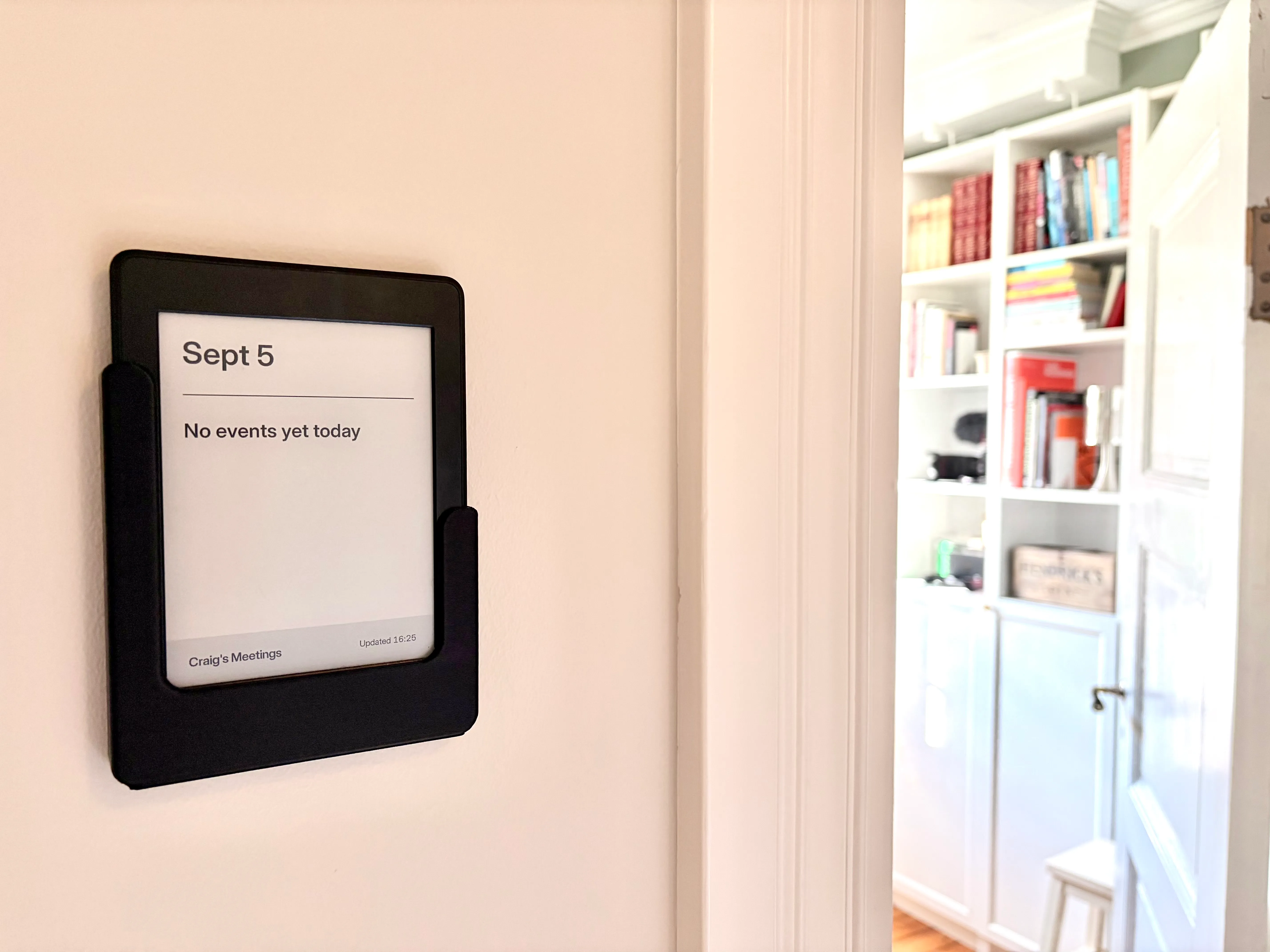

Why do we need this?
I work from home so I’m in meetings a lot and my wife never knows when. She has some signals (the office door might be closed) but she can’t be sure. She doesn’t know when the meeting is actually finished because my door is still closed.
We had already tried to fix this with a shared calendar that duplicated every event from my work calendar. It wasn’t as useful as I’d hoped. Either it showed far too much detail she didn’t need, or it was out of sight because she had to take her phone out and check it.
Then I saw a post of someone building their own e-ink display system and shortly after I came across TRMNL and looked into building my own.
TRMNL sell their own e-ink devices, but they also have a bring your own device option. I had an old Kindle Paperwhite that would otherwise have been e-waste so why not try. Worst case I brick it and it’s still e-waste.
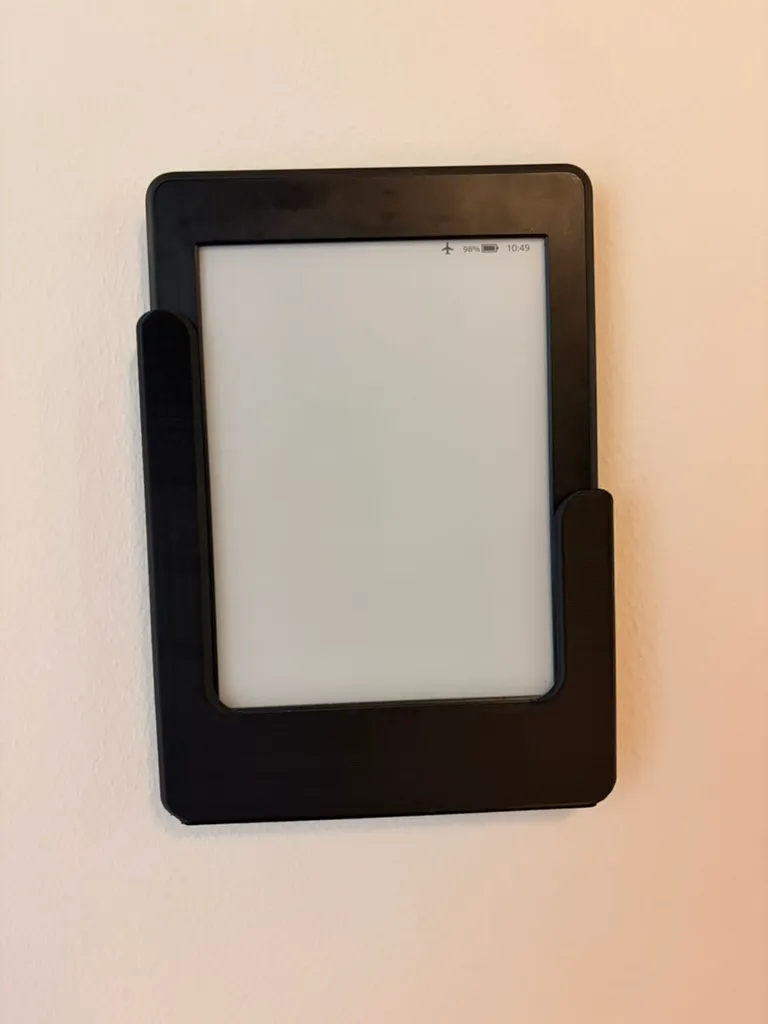
The whole brief was a display at eye level
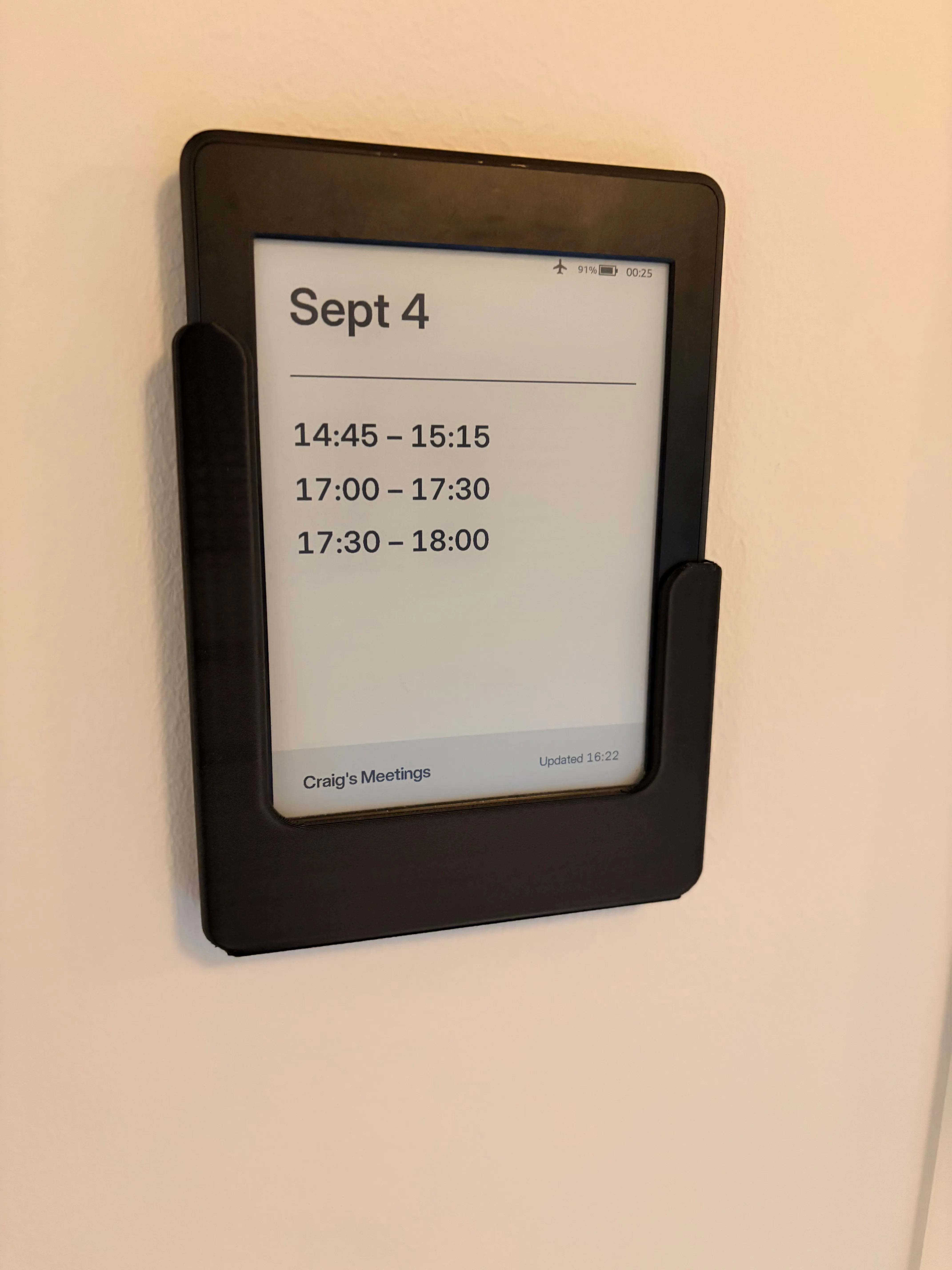
What my wife wanted was a very simple display showing the times of my meetings. That was the whole brief. No phone, no notifications, no detail. Think meeting room booking panels that have become somewhat ubiquitous in offices and co-working spaces.
Jailbreaking the Kindle was error-prone and I nearly gave up
TRMNL’s Kindle path is documented in the trmnl-kindle repository on GitHub, and that walkthrough links to the jailbreak (removing Amazon’s restrictions so the Kindle can run other software) you need to do first.
I had a lot of issues. What fixed it was letting Claude Code run through everything, which was a happy accident. I had auto mode on and simply asked it to walk me through the guide. Instead it inspected the device because it was already connected, diagnosed the issues from what it could see, then asked if it should go ahead and fix them. Uh, yes please!
Proof of concept before design implementation
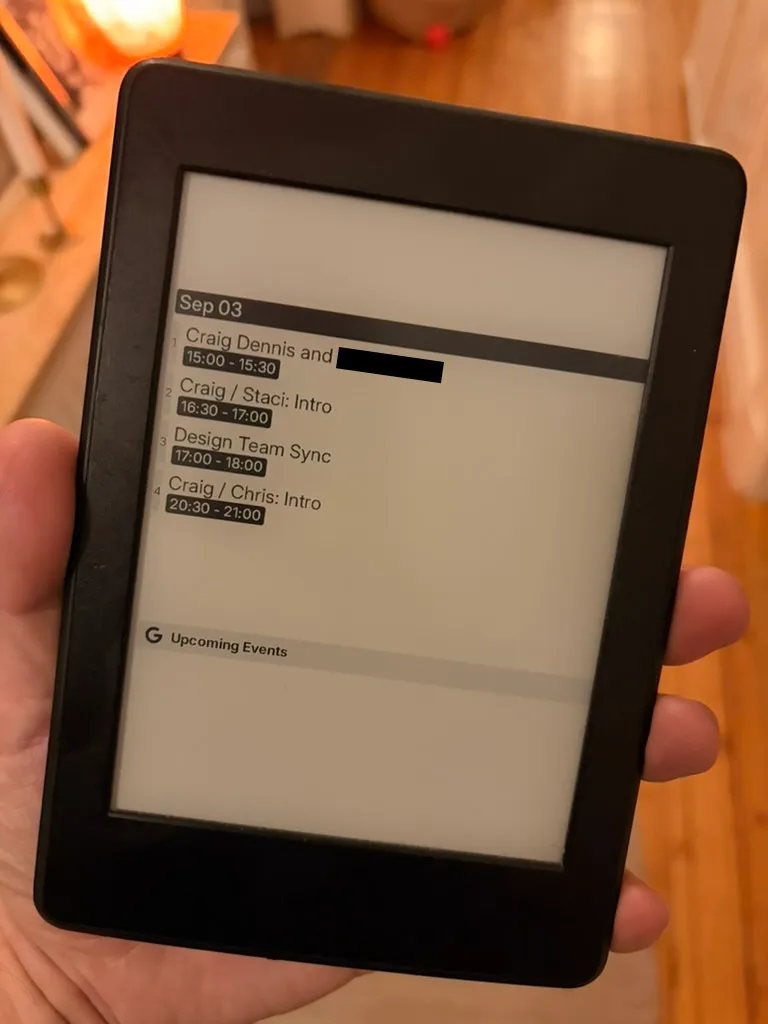
I wanted something working before I worked on implementing my design, so I used TRMNL’s own Google Calendar plugin. Connect the calendar, add it to the playlist (the list of screens TRMNL cycles through), wait for the Kindle to fetch. It rendered and showed the correct data. It was dense and landscape and it didn’t matter. It worked.
I needed to stop thinking this display was for me
I had a very clear picture of how this should look, and it looked like a calendar: blocks laid over a timeline of the day. That is how I think about my day. It is not how she thinks.
So I had to set aside my own preconceived notions, as a designer should, and design for her need and her problem instead of mine. I could still make it look good. I needed to get over the fact that this was not for me.
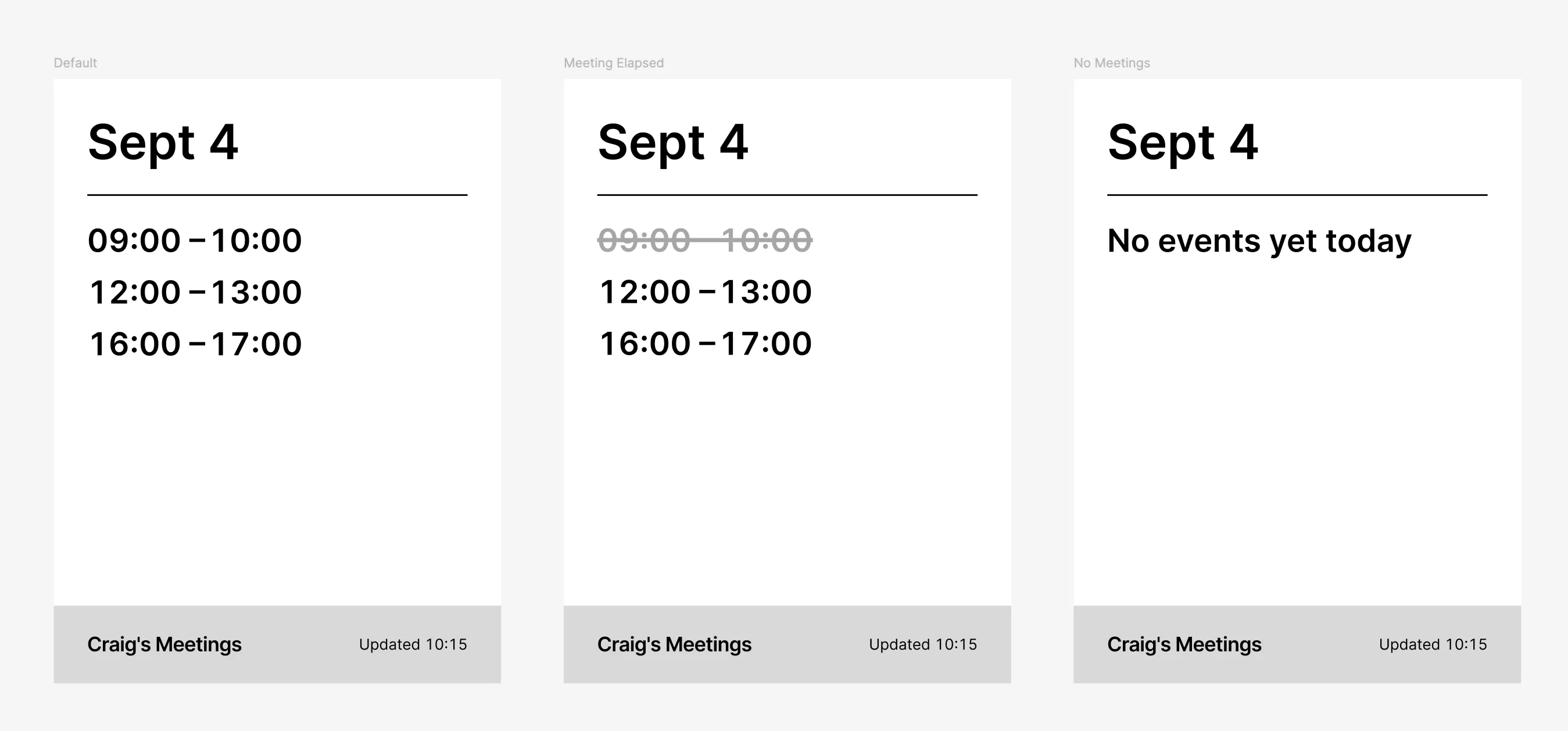
What I drew in Figma is a list. Today’s date, a divider, then each meeting’s start and end time in large type, one per line. A meeting that has finished turns grey and gets struck through. A grey bar along the bottom carries the calendar name and the time the screen last updated. When there is nothing on the calendar it says so.
I wanted a relative time for the update text but realised the image isn’t real time. It updates every 15 minutes so it would always show “updated 0 minutes ago”.
TRMNL’s MCP let Claude rebuild the Figma frame as a plugin
MCP servers (a way for Claude to use another product’s tools directly) are still quite new, so I was very pleased to see one available for TRMNL. It meant that I didn’t need to do lots of copying and pasting between Claude Code and TRMNL.
That meant Claude could read my frames through Figma’s MCP, write the markup into a private TRMNL plugin, render a preview, and compare it to the frame. Type sizes, spacing and the grey of the bar came from the frames rather than from a screenshot.
The part I expected to be hard was getting the data. I didn’t want to have to create an app in Google Cloud and go through OAuth just to read my own calendar. TRMNL’s Plugin Merge (one plugin reading another plugin’s data) meant I didn’t have to.
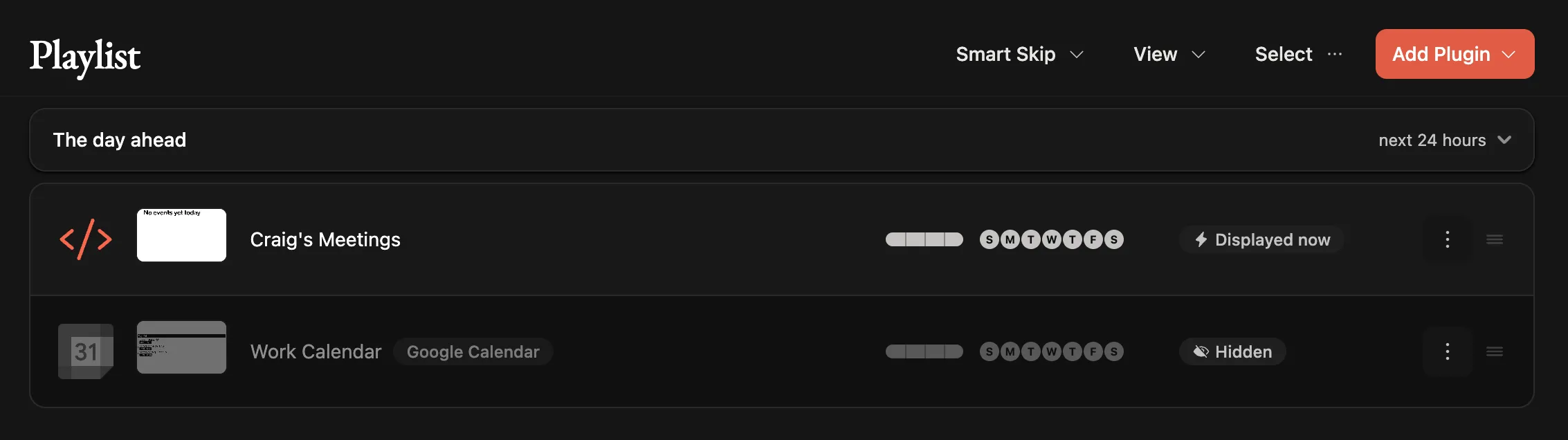
I can authenticate using the existing Google Calendar plugin, and its events become variables that my own plugin can read. Both need to stay in the playlist which is fine because you can hide the Google one.
Portrait mode was not about rotating the image
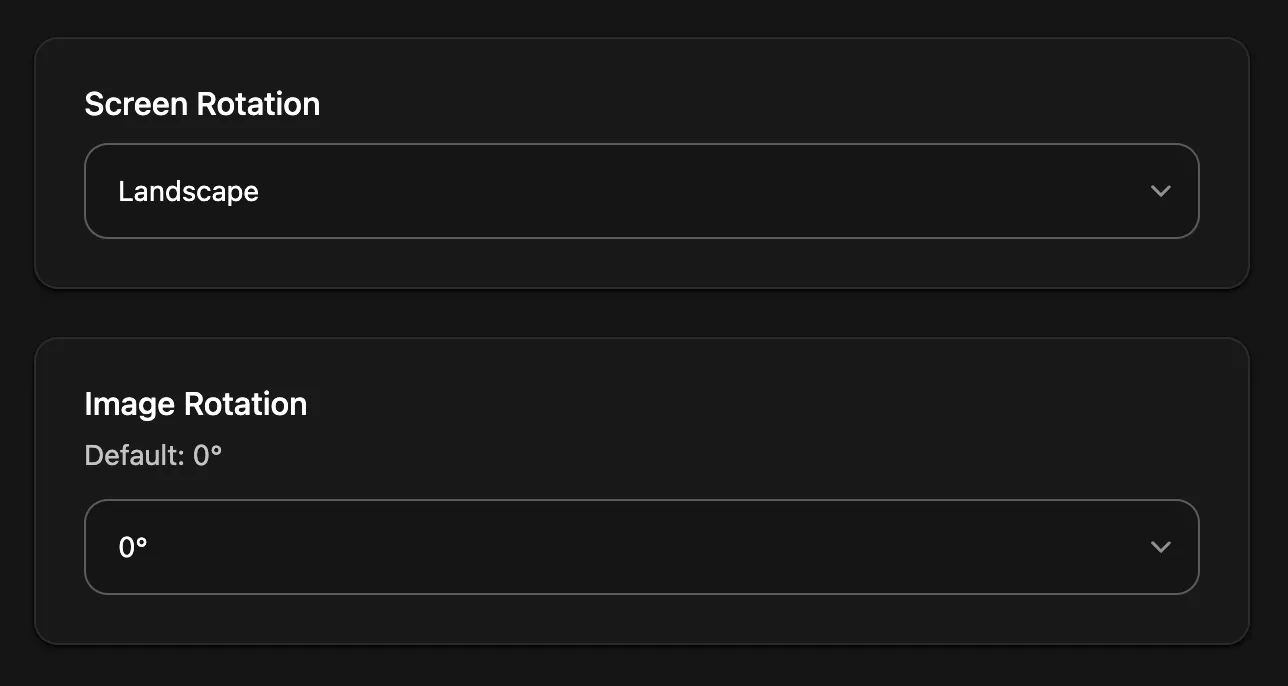
TRMNL’s Paperwhite preset assumes the Kindle is on its side, and I wanted it upright for such a simple design. Rotating the image output changed the size the server rendered at, and the Kindle stopped updating. The fix was a custom device model in the TRMNL app with the width and height swapped (to make it portrait) and image rotation set back to default. The server now renders upright and nothing needs rotating.
Blank screen of doom
The stock calendar plugin rendered fine but mine rendered nothing, on the same device, at the same size.
Claude compared the two images the Kindle was downloading. TRMNL saves each screen with only as many shades of grey as the design uses. The stock plugin used plenty, so it was saved in a format the Kindle’s built-in drawing tool understands. Mine used four, so it was saved in a smaller format (a 4-bit PNG instead of 8-bit) that the tool can’t draw. The start script also clears the screen before it draws, so a failed render just leaves it blank. Not ideal.
Claude suggested adding a gradient as a stopgap. It forced enough shades of grey into the design to get the larger format back. It worked, but the real fix was switching the script to use fbink (a different drawing tool the jailbreak had already installed), which draws any PNG format.
The start script also needed a patch so the Kindle stopped returning to its home screen when the backlight turned off, and it now writes a log Claude can read over USB when a refresh fails.
Where it stands
It’s in place. The Kindle wakes on a timer, fetches the latest render, draws it, and goes back to sleep. Finished meetings grey out as the day goes on and the empty state renders.
Two things are left. I’ve designed a couple more states for the end of the day and weekends but I don’t want to push my luck. I’m also waiting on a full night on battery to confirm the Kindle keeps waking itself.
Given how well this worked, I’m very likely to buy one of TRMNL’s own devices next for a real family calendar.